How to Tell if Your iPhone Is Hacked: Warning Signs + What to Do


Key Takeaways
- If you think your iPhone is hacked, look for rapid battery drain, overheating, unusual data usage, unfamiliar apps/profiles, or strange pop-ups.
- Immediately check Settings > [Your Name] for unauthorized devices connected to your Apple ID and remove anything you don’t recognize.
- Use Apple’s Safety Check to revoke shared access fast: Settings > Privacy & Security > Safety Check (use Emergency Reset if needed).
- Delete suspicious configuration profiles via Settings > General > VPN & Device Management and update iOS through Settings > General > Software Update.
- If suspicious activity continues, change your Apple ID password (from a secure device), enable 2FA, and consider a factory reset: Settings > General > Transfer or Reset iPhone > Erase All Content and Settings.
Although Apple’s iOS system is built for privacy and security, any device connected to the internet can be hacked, even an iPhone. As alarming as that sounds, don’t worry. There are clear warning signs to look for, and fast steps you can take to regain control.
To know if your iPhone is hacked, look for unexplained rapid battery drain, overheating, excessive data usage, unfamiliar apps, or strange pop-ups. If you notice any of these, immediately:
- Check for unauthorized devices in Settings > [Your Name]
- Use Safety Check in Settings > Privacy & Security > Safety Check to revoke shared access and permissions
In this guide, we’ll outline the signs of a hacked iPhone, how to check your settings for suspicious access, and what to do if you suspect someone has compromised your device.
Can an iPhone Be Hacked?
Yes, it’s possible.
It’s true that iPhones are some of the most secure smartphones on the market, but no system is completely foolproof. At the end of the day, an iPhone is still a computer connected to the internet, which makes it a target for phishing attempts, account takeovers, malicious configuration profiles, and (in rare cases) advanced spyware.
There have also been high-profile incidents linked to iPhone hacking, including the Pegasus spyware revelations and Operation Triangulation (reported as an iMessage-based infection chain). These cases are generally the exception, not the rule – but they reinforce the most important takeaway:
If your phone supports the latest iOS updates, install the newest iOS version available. Security patches exist for a reason.
How Can Someone Hack My iPhone?
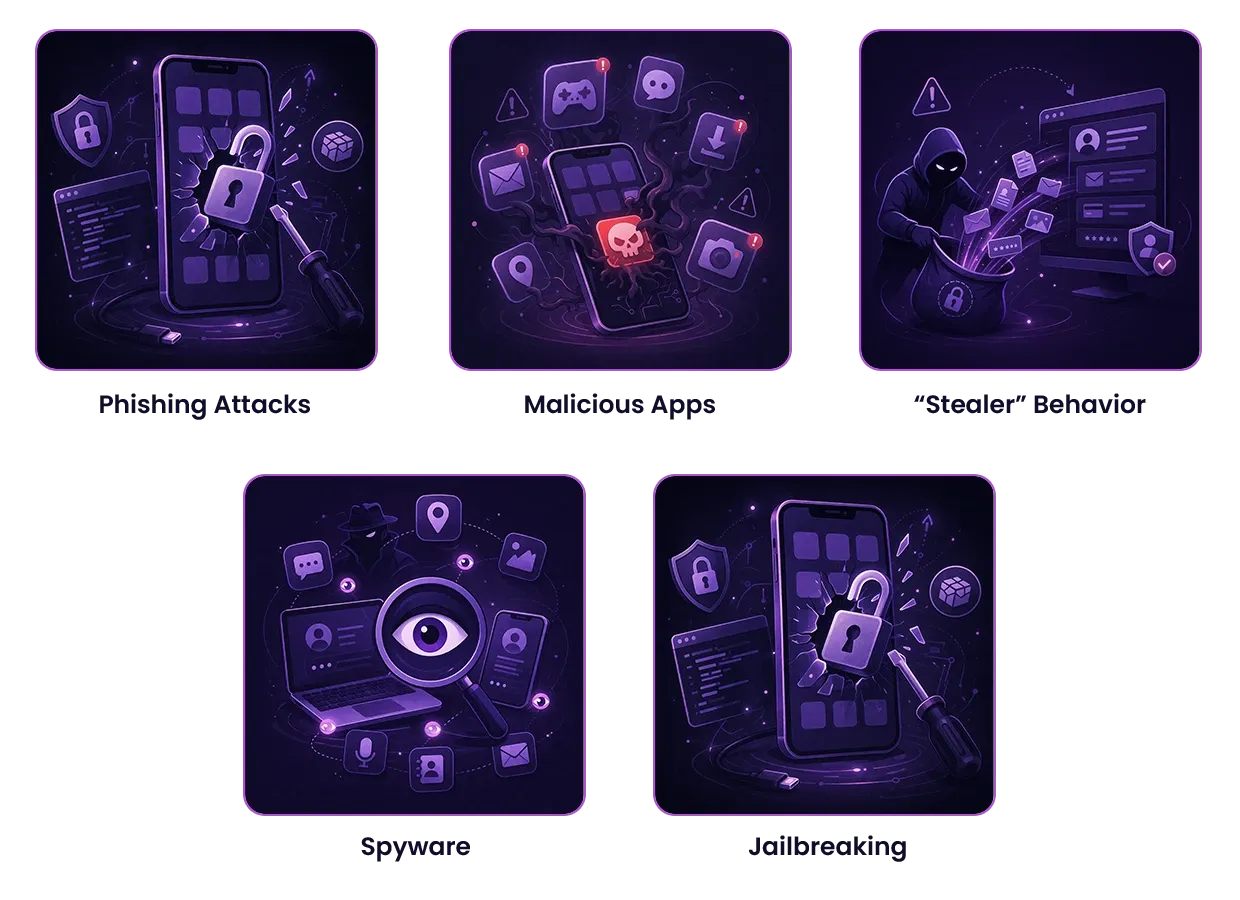
Cybercriminals use a mix of technical exploits and human tricks. Most iPhone compromises start with one of these:
Method 1: Phishing Attacks
Phishing is when attackers try to trick you into clicking a malicious link or entering your Apple ID credentials on a fake page. These scams can arrive as SMS (“smishing”), email, social media DMs, or even fake Apple security alerts.
Once they have your login details (or you install something you shouldn’t), they can access your accounts, lock you out, or take over parts of your device.
Method 2: Malicious Apps or “Stealer” Behavior
Even though the App Store is more controlled than third-party app sources, scammers still try to push shady apps, fake utilities, or “too good to be true” tools. Some operate quietly in the background, collecting data or pushing you into credential theft flows.
Method 3: Spyware
Spyware is more sophisticated and harder to spot. It can run with minimal visible signs and attempt to access private data like messages, call activity, browsing history, photos, or location. In extreme cases, spyware can attempt to access your microphone or camera.
Method 4: Jailbreaking
Jailbreaking removes Apple’s built-in protections and increases your exposure to malware and unauthorized access. If security matters to you, jailbreaking is not worth the risk.
Key Warning Signs of a Hacked iPhone
If your iPhone feels “off,” trust your instincts – then check for these specific signs:
Unauthorized Devices
If you see unknown devices listed under your Apple ID, that’s a major red flag.
Where to check: Settings > [Your Name] (scroll down to the device list)
Unfamiliar Apps or Profiles
Apps you didn’t install, or strange configuration profiles you don’t recognize, can indicate compromise.
Where to check profiles: Settings > General > VPN & Device Management
Performance Issues
A hacked or compromised phone may show:
- Constant overheating
- Unusual lag / slow performance
- Rapid battery drain that doesn’t match your normal usage
Strange Activity
Look for signs someone is using your identity or accounts:
- Friends receive spam texts from you
- Messages appear in “sent” that you didn’t send
- Unknown, unauthorized, or recurring charges show up on your cards or subscriptions
Security Prompts and Lockouts
If you get unexpected prompts to change your Apple ID password, or you are suddenly locked out of your Apple ID, treat it as a security incident until proven otherwise.
Suspicious Camera/Mic Usage
On iPhone, the green (camera) or orange/yellow (microphone) dot appears when those sensors are being used.
If the dot shows up when you’re not using apps that require them, investigate immediately.
Steps to Take if You Suspect a Hack
If you see warning signs, act fast. Your goal is to cut off access before more damage happens.
1) Run Safety Check
Go to: Settings > Privacy & Security > Safety Check
Safety Check helps you review who and what has access to your information and lets you revoke sharing quickly. If needed, use Emergency Reset to immediately stop sharing and review account security.
2) Remove Unknown Devices
Go to Settings > [Your Name], scroll down, and review the connected device list. Remove any device you don’t recognize.
3) Update iOS
Go to: Settings > General > Software Update
Install the latest update available to patch vulnerabilities.
4) Remove Suspicious Profiles
Go to: Settings > General > VPN & Device Management
Delete any configuration profiles you don’t recognize (especially ones you didn’t install for work, school, or trusted VPN providers).
5) Change Your Apple ID Password
Change your Apple ID password from a secure device if possible, then enable two-factor authentication. This is one of the fastest ways to kick attackers out of your account.
6) Factory Reset (If Issues Persist)
If you still see suspicious behavior after doing the steps above, back up what you need and do a full reset:
Settings > General > Transfer or Reset iPhone > Erase All Content and Settings
Then set up your device carefully and avoid restoring unknown apps or profiles.
What Can Happen If Your iPhone Gets Hacked?
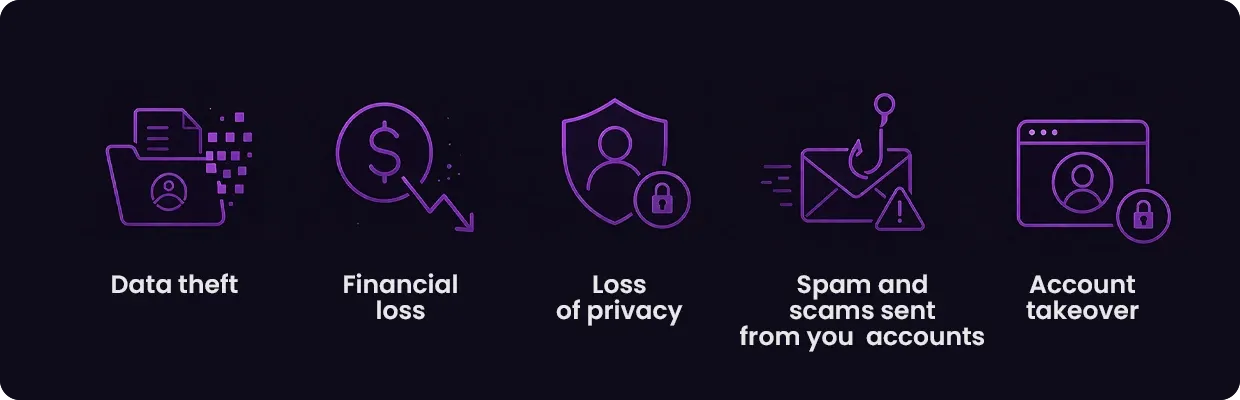
The impact ranges from annoying to dangerous, depending on what the attacker accessed:
- Data theft: contacts, messages, photos, browsing history, saved credentials
- Financial loss: unauthorized purchases, Apple Pay fraud, subscription charges
- Loss of privacy: access to private communications, location data, or media
- Spam and scams sent from your accounts: damaging trust with friends and coworkers
- Account takeover: Apple ID compromise can lead to lockouts and wider device access
How to Check if Your iPhone Has Been Hacked (Settings Checklist)
If you’re worried your iPhone might be compromised, quickly review these areas in Settings:
- Configuration Profiles: Go to Settings > General > VPN & Device Management and remove any profile you don’t recognize.
- Apple ID Devices: Open Settings > [Your Name] and check all listed devices. Remove unknown ones.
- Safety Check: Go to Settings > Privacy & Security > Safety Check to review sharing and account access.
- App Permissions: In Privacy & Security, check which apps can access your location, camera, microphone, photos, Bluetooth, and local network.
- Data Usage: Under Settings > Cellular, look for unusual background data activity.
- Battery Usage: In Settings > Battery, check if any unfamiliar app is draining power excessively.
If anything looks suspicious, remove the app or device immediately and secure your account.
How to Protect Your iPhone From Future Hacks
Prevention is always easier than recovery. Once you’ve secured your device, the goal is to reduce the chances of it being compromised again. Most iPhone security incidents happen because of phishing, weak account protection, outdated software, or risky network connections, not advanced spyware. By strengthening a few core habits, you can dramatically lower your risk and keep your personal data protected long term.
Avoid Suspicious Links and Fake Alerts
Don’t click “security warning” pop-ups that claim your iPhone has been hacked or that you need to download urgent software. Apple does not send virus warnings through random browser pop-ups. Avoid links in unexpected emails, text messages, or DMs – especially ones asking you to “verify” your Apple ID or payment details. When in doubt, check your account directly in Settings, not through a link.
Only Install Apps From Trusted Sources
Stick to the official App Store and avoid unofficial downloads, “modded” apps, or third-party app stores. Even in the App Store, review app permissions and ratings before installing. Be cautious of apps that request access to your camera, microphone, contacts, or full photo library without a clear reason.
Keep iOS Updated
Software updates are not just about new features: they contain critical security patches that fix known vulnerabilities. Hackers often exploit outdated versions of iOS. Go to Settings > General > Software Update and enable automatic updates so your device stays protected without relying on memory.
Lock Down Your Apple ID
Your Apple ID is the master key to your iPhone, iCloud, and other Apple services. Use a strong, unique password and enable two-factor authentication (2FA). Never reuse your Apple ID password on other websites. If you receive unexpected 2FA codes, treat it as a warning sign that someone may be trying to access your account.
Review Permissions Regularly
Apps don’t need unlimited access to your data. Go to Settings > Privacy & Security and review which apps can access your location, microphone, camera, photos, Bluetooth, and local network. Remove permissions that aren’t necessary. Limiting access reduces the damage a malicious or compromised app can cause.
Use a VPN on Public Wi-Fi
Public Wi-Fi networks in cafes, hotels, and airports are common targets for data interception and man-in-the-middle attacks. A VPN for public WiFi encrypts your internet traffic, making it much harder for attackers to monitor or manipulate your connection. This is especially important when logging into accounts or handling sensitive information on untrusted networks.
Conclusion
iPhones are built with strong security protections, but no device is immune to hacking attempts. If you notice rapid battery drain, overheating, unfamiliar apps, strange pop-ups, unknown Apple ID devices, or suspicious camera/mic indicators, act quickly.
Start with Settings > [Your Name] to remove unknown devices, then use Settings > Privacy & Security > Safety Check to revoke access. Update iOS, delete suspicious profiles, lock down your Apple ID, and factory reset if necessary.
Your iPhone holds your most sensitive data; it deserves real security habits, not hope.


Reclaim the internet that took you at your word!
Get Mysterium VPN
Frequently Asked Questions
Gintarė is a cybersecurity writer at Mysterium VPN, where she explores online privacy, VPN technology, and the latest digital threats in editorial pieces. With hands-on experience researching and writing about data protection and digital freedom, Gintarė makes complex security topics accessible and actionable.
Related Articles
.png)