How to See (And Delete) Your Incognito History in 2026



Let’s be honest. Most of us have used incognito mode at some point, thinking it’s our online “invisibility cloak.” Open a private tab, browse whatever website you want shame-free, close it, and poof, it’s gone forever. Right? Well, not exactly.
Incognito mode is great for hiding your activity from any other people using your device. But it doesn’t erase your digital footprint as cleanly as you might think. In fact, traces of your browsing can still exist in places most people would never check.
Even if you wanted to see or delete incognito history, the process isn’t exactly beginner-friendly. It involves digging into system logs, running commands, and knowing where to look. We’ll walk you through everything you need to know: how incognito mode actually works, who can see your incognito history, how to delete it, and some easier ways to stay private online.
Key Takeaways
- Incognito mode doesn’t save your browsing history in your browser, but it won’t make your activity invisible online.
- Your browsing activity can still be seen by your internet service provider (ISP), network administrators, and through system-level logs like DNS cache on your device.
- It’s possible to view incognito history on desktop computers using tools like DNS cache, but the process is rather technical.
- If you want real privacy, using a VPN is far easier and more effective than relying on incognito mode alone.
Does Incognito Save History? The Truth
Short answer: yes and no. Incognito mode doesn’t save your browsing history in your browser. That means when you close the browser window, you won’t see those websites listed in your history tab later. But that doesn’t mean your activity disappears completely.
Think of it like writing on a whiteboard instead of a piece of paper. You can easily wipe the whiteboard clean, but if someone took a photo of it while you were writing, the record would still exist somewhere.
That’s exactly what happens with incognito browsing. Your browser keeps things clean locally, but other systems still see what you’re doing. To understand this better, let’s break it down.
What Incognito Mode Hides
Incognito mode is designed to protect your privacy on your own device. It does a decent job at that. Here is what it typically hides:
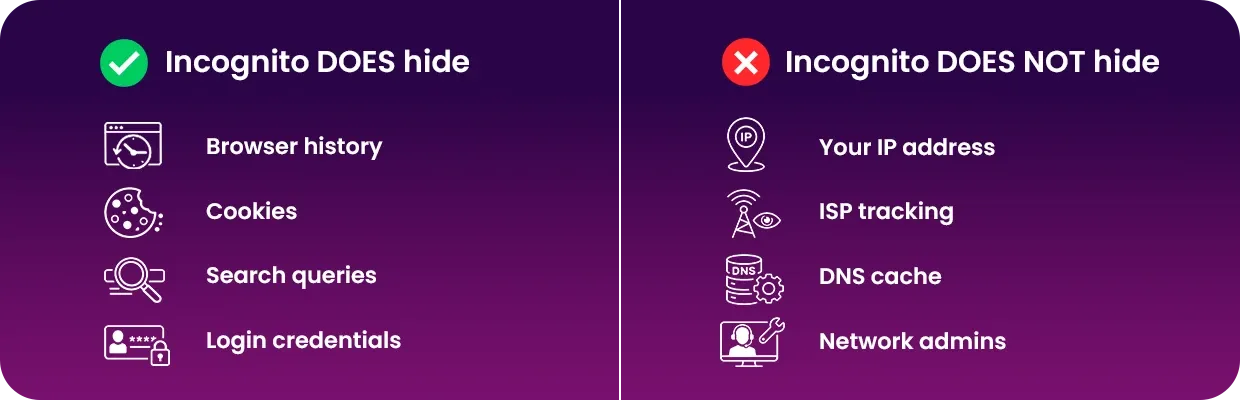
- Browsing history: Websites you visit aren’t saved in your browser history.
- Search queries: The things you search for get scraped after an incognito session.
- Cookies and site data: Cookies created during a browsing session are deleted once you close the incognito window.
- Account login information: Usernames, passwords, and form data aren’t saved or autofilled later.
This is why incognito mode is useful when you’re sharing a computer with other people, like logging into your email on a friend’s laptop.
What It Doesn’t Hide
Now for the part most people don’t realize. Incognito mode doesn’t hide your activity from everyone. Here’s what still gets tracked and by whom:
- Your IP address: Websites can still see your IP, which reveals your general location.
- DNS cache: Your device may store records of visited domains in something called a DNS cache. This is one of the main ways incognito history can still be viewed later.
- Downloads and bookmarks: Anything you download or bookmark stays on your device.
- Your internet provider (ISP): Your ISP can still see which websites you visit. Incognito mode doesn’t encrypt your traffic.
- Network administrators: If you’re on a work, school, or public Wi-Fi network, admins can still monitor your activity.
⚠️ Incognito mode doesn’t grant you absolute online immunity and doesn’t absolve you of online regulations and local laws. If you’re looking for more robust privacy solutions, we recommend using Mysterium VPN as well as a security-focused search engine.
How to See Incognito History on Any Device
Here is where things get interesting. There’s no simple “show incognito history” button. If there were, it would defeat the whole purpose. But traces of your browsing history still exist, especially on desktop devices. You just need to know where to look.
Below are the most common ways to check incognito history depending on your device.
On macOS
Here’s how you can see your incognito history on a Mac by accessing the DNS cache:
- Go to Apps, then search for the app Console and open it.
- Now type any:mdnsresponder in the search bar, and click Start.
- Go back to Apps, open the Terminal app.
- Type sudo killall -INFO mDNSResponder and click Enter.
- Go back to the Console to see the list of visited sites.
It’s not exactly a clean, easy-to-read browsing history. Instead, it looks more like a system log than a timeline. Still, it proves one important thing. Incognito mode doesn’t erase everything.
On Windows
Here’s how you can see your incognito history on Windows by accessing the DNS cache:
- Press the Windows key and type Command Prompt in the search bar.
- Now type ipconfig/displaydns in the Command Prompt window.
- Click Enter.
One thing to keep in mind. The list you see only shows recent activity and gets cleared over time or after a restart.
On iPhone
There’s no direct way to see incognito history on an iPhone. Apple keeps things locked down pretty tightly, and incognito mode in Safari doesn’t store browsing history in a way you can access later.
That said, there are workarounds. You could use a parental control app like Aura or AirDroid Parental Control to see which websites were visited on your iPhone while using incognito mode. Still, this isn’t something the average user will set up just to check their own history.
On Android
Android is in a similar situation. There’s no built-in way to view incognito history after the session ends. Once you close the tab, your browser wipes its local record. However, just like on iPhone, third-party tools can track activity.
Parental control apps like Kidslox or AirDroid Parental Control can monitor websites visited on the device, even during private browsing sessions. Again, this requires setup in advance. If you didn’t install anything before using incognito, there’s nothing to “recover” later.
Browser Extensions
There’s another option that sits somewhere between clever and slightly invasive. Browser extensions. Some extensions can track browsing activity even in incognito mode if you allow them to run there.
For example, tools like Off The Record History or Incognito History can log the websites you visit and store them for later viewing. Here is the catch.
You have to install and enable them before you start browsing. They won’t magically recover past sessions. Also, giving an extension access to your private browsing is a big trust decision. Not all extensions are safe, and some can collect more data than you’d like. So, if you go this route, read reviews carefully and stick to well-known options.
How to Delete Incognito History
Now that we have seen how traces can still exist, the next logical question is how to get rid of them. Incognito mode doesn’t store history in your browser, so there’s nothing to “delete” there. But system-level traces, like DNS cache, still exist. And clearing them requires manual steps. Let’s go through it by device.
On macOS
Follow this step-by-step guide to delete your incognito history from a macOS device:
- Go to Apps, then search for the app Console and open it.
- Type in sudo dscacheutil -flushcache; sudo killall -HUP mDNSResponder, and now press Enter.
- Type your Mac’s password (the one you use to unlock the computer) to confirm your request.
Doing this will wipe out the DNS cache and delete any stored browsing history.
On Windows
To delete DNS cache on Windows:
- Press the Windows key and type Command Prompt in the search bar.
- Run it as administrator.
- Type ipconfig /flushdns and click Enter.
You should see a message confirming the cache has been cleared.
On Android
On your Android, clearing incognito traces takes a couple of extra steps, as long as you’re using Google Chrome:
- Open Chrome and type in chrome://net-internals/#dns in the address bar.
- Click Clear host cache.
- Then go to Settings, then to Apps, Chrome, and finally, Storage.
- Tap Clear cache and Clear data.
This removes stored DNS records and temporary data from your web browser.
On iPhone
On an iPhone device, things are less precise, but there are still ways to clear temporary traces:
- Airplane mode trick: Turn on Airplane mode for a few seconds, then turn it off. This can reset temporary DNS data.
- Restart your device: A simple restart can clear temporary system caches.
Not exactly a quick, satisfying solution if you’re looking for a “delete everything” button, but it does help reduce leftover traces.
VPN vs. Incognito Mode: Which One Is Better?
At this point, you may be thinking: “If incognito mode is limited and managing it is complicated… is there a better way?” Short answer. Yes. And it is much simpler than you think.
What Does Incognito Mode Do?
Incognito mode is a local privacy tool. It keeps your browsing activity off your device, nothing more. It stops your browser from saving and storing:
- Your browsing history, like the websites you’ve visited and when.
- Any website cookies you’ve accepted while browsing, like your ad preferences.
- Login credentials, like your usernames and passwords, when logging into your accounts.
That’s useful, but very limited in scope. It doesn’t:
- Hide your IP address from public view.
- Encrypt your internet traffic.
- Stop your ISP, advertisers, and other third parties from tracking you across the web.
- Protect you on unsafe public Wi-Fi networks.
So, while using incognito mode may feel private, it’s only private in a very narrow sense. It’s like closing the curtains in your room while leaving the front door wide open.
What Does a VPN Do?
A VPN works on a completely different level. Instead of cleaning up after you browse, it protects you while you’re browsing. That is a big difference. Here’s what a VPN actually does in practice:
- It encrypts your internet traffic: Your browsing data gets scrambled into unreadable code. Even if someone intercepts it, they can’t understand it and benefit from it.
- It hides your real IP address: Websites and trackers see the VPN’s IP instead of yours. This makes it much harder to link any activity back to you.
- It blocks ISP tracking: Your internet provider can no longer see which websites you visit and when. They only see that you’re connected to a VPN.
- It protects you on public Wi-Fi: Whether you’re at a place with communicable Wi-Fi, like a coffee shop, mall, university, an office, airport, or hotel, your connection stays secure. No one else on the network can snoop on your activity.
- It works across your entire device: Not just your browser. Apps, background processes, everything goes through the VPN.
Most people open incognito mode, assume it's private, and move on. And that is exactly where the problem starts. Using a VPN flips that experience. You turn it on once, and it keeps protecting you automatically. No extra steps. No technical knowledge required.
That is the difference between a tool that sounds private and one that actually is.
How To Improve Your Online Anonymity
Incognito mode isn’t useless. It just isn’t what most people think it is. It helps you stay private on your own device, but it doesn’t protect you from the outside world. And as you have seen, checking or deleting your incognito history is not exactly simple. It takes time, technical steps, and a bit of effort that most people would never bother with.
That is why relying on incognito mode alone isn’t enough in 2026. If your goal is real, substantial online privacy, the smarter move is to prevent tracking in the first place, not chase it after it happens.
A VPN does exactly that. It protects your data from the get-go, reduces the traces your browsing leaves behind, and removes the need for all the manual cleanup. And honestly, that’s the kind of privacy most people are actually looking for. Simple, reliable, and always on. Try it today and experience a new level of peace of mind, now for 78% off!


Save big and get free trial
Get Mysterium VPN

Frequently Asked Questions
Gintarė is a cybersecurity writer at Mysterium VPN, where she explores online privacy, VPN technology, and the latest digital threats in editorial pieces. With hands-on experience researching and writing about data protection and digital freedom, Gintarė makes complex security topics accessible and actionable.
Related Articles
.png)