What Apps Are Draining My Battery?



Key Takeaways
- Social media, streaming, navigation, and video-calling apps are among the biggest battery drainers because they rely on background activity, media processing, GPS, and constant data syncing.
- Both Android and iPhone devices include built-in battery usage tools that help you identify which apps consume the most power.
- Simple changes like limiting background activity, reducing notifications, lowering screen brightness, and enabling battery saver mode can significantly extend battery life.
- Maintaining good battery habits — like avoiding extreme temperatures, updating apps regularly, and keeping your charge between roughly 20% and 80% — helps preserve long-term battery health.
There’s nothing more annoying than your phone’s battery dying at the worst possible time. Whether you have an Android device or an iPhone, learning how to balance your phone's battery power and getting some good use of your phone can be pretty tough.
Fret not, dear reader – in this Mysterium VPN blog post, we’ll walk you through battery-draining apps, how much battery life they actually eat up, and a few options on how to prevent battery drain to make sure you save battery life and enjoy your phone for longer. Let’s go!
Apps That Drain Battery
Here’s an overview of battery-draining apps. Look for them on your phone, and keep reading to learn how to preserve your battery life even with these installed apps. These apps can significantly impact your phone's battery, causing it to drain faster than expected.
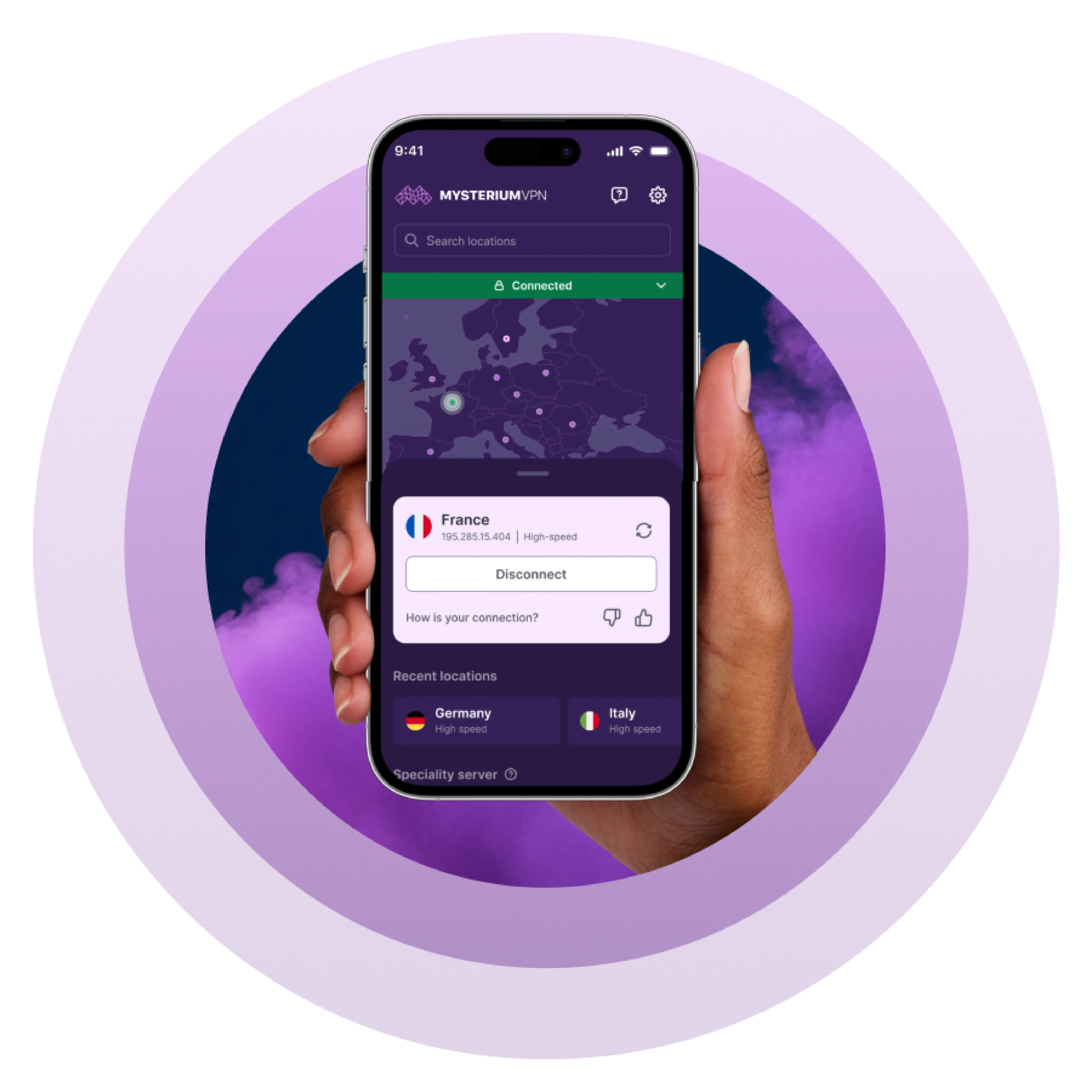
You might also wonder whether tools like VPN apps affect battery performance — while VPNs do use some power to encrypt and route your internet traffic, their impact is typically minimal compared to social media, streaming, navigation, or video apps that constantly run in the background.
This Meta-owned social media platform is guaranteed to be found on almost every single phone. But it’s not as harmless as you may think, especially when it comes to your phone's battery.
The app’s heavy use of media (photos, reels, advertisements), frequent updates, and ongoing background processes make it one of the top battery drainers.
To stop this, users can turn off background refresh and notifications or switch to Facebook Lite, which will use less power.
Instagram’s non-stop background activity, constant syncing of new content across devices, and auto-playing reels contribute a lot to battery drain.
Its heavy use of visual content requires significant processing power and data usage, which can drain your phone's battery quickly.
Users can save battery by turning off video autoplay and limiting background data.
Snapchat
The app frequently uses the camera on your phone and tablet, as well as using certain functions like GPS, and constantly pushes notifications, leading to significant battery life consumption.
Its background processes and location tracking eat up your phone's battery. To save it, you can disable location services and reduce notification frequency.
Google Maps
Obviously, its ongoing GPS tracking and background updates for accurate navigation consume a whole lot of battery power.
The app also runs background processes to keep maps and traffic data updated, which can drain your phone's battery.
To preserve battery life, you should disable background location access and only use the app when necessary.
TikTok
The app’s endless stream of high-definition short videos requires constant loading and processing of files, which drains the battery super quickly.
TikTok’s background data usage and the push notifications you receive contribute to battery consumption, draining your phone's battery even more.
Limiting your app usage time and disabling background data can also help save battery life.
The app’s constant background activity to sync messages and notifications significantly drains the battery.
Its frequent use of media and real-time communication features also contribute to high battery usage, draining your phone's battery.
Users can reduce battery drain by turning off unnecessary notifications and restricting background data usage.
YouTube
Streaming videos, especially in high resolution, uses a hell of a lot of processing power and battery life.
The app’s background processes and data gathering for recommendations and updates also add to the drain on your phone's battery. To save battery, you can lower your video quality and use it less altogether.
Netflix
Watching videos on Netflix consumes a lot of battery due to continuous video playback and data usage.
The app’s background processes to update content and sync viewing history also contribute to the drain on your phone's battery.
Users can download content for offline viewing and lower playback quality to conserve battery.
Spotify
Streaming music requires significant battery power, especially when downloading songs for offline use.
The app’s background activity to continue to sync playlists and updates also contributes to the drain on your phone's battery. You can save battery by turning off background updates.
Zoom
Video calls use a lot of battery power due to the constant use of the camera, microphone, and data transfer.
Zoom’s background activity keeps meetings going without interruptions, which can drain your phone's battery.
To save battery, you can reduce screen brightness, use audio-only mode when possible, and close the app after use.
Find Battery Usage by App
Knowing which apps are draining your phone's battery the most can help you manage your phone’s power consumption more effectively.
Both Android and iOS devices have built-in settings in their systems to help you monitor battery usage by each app.
Here’s how you can access and interpret this information:
Accessing Battery Settings
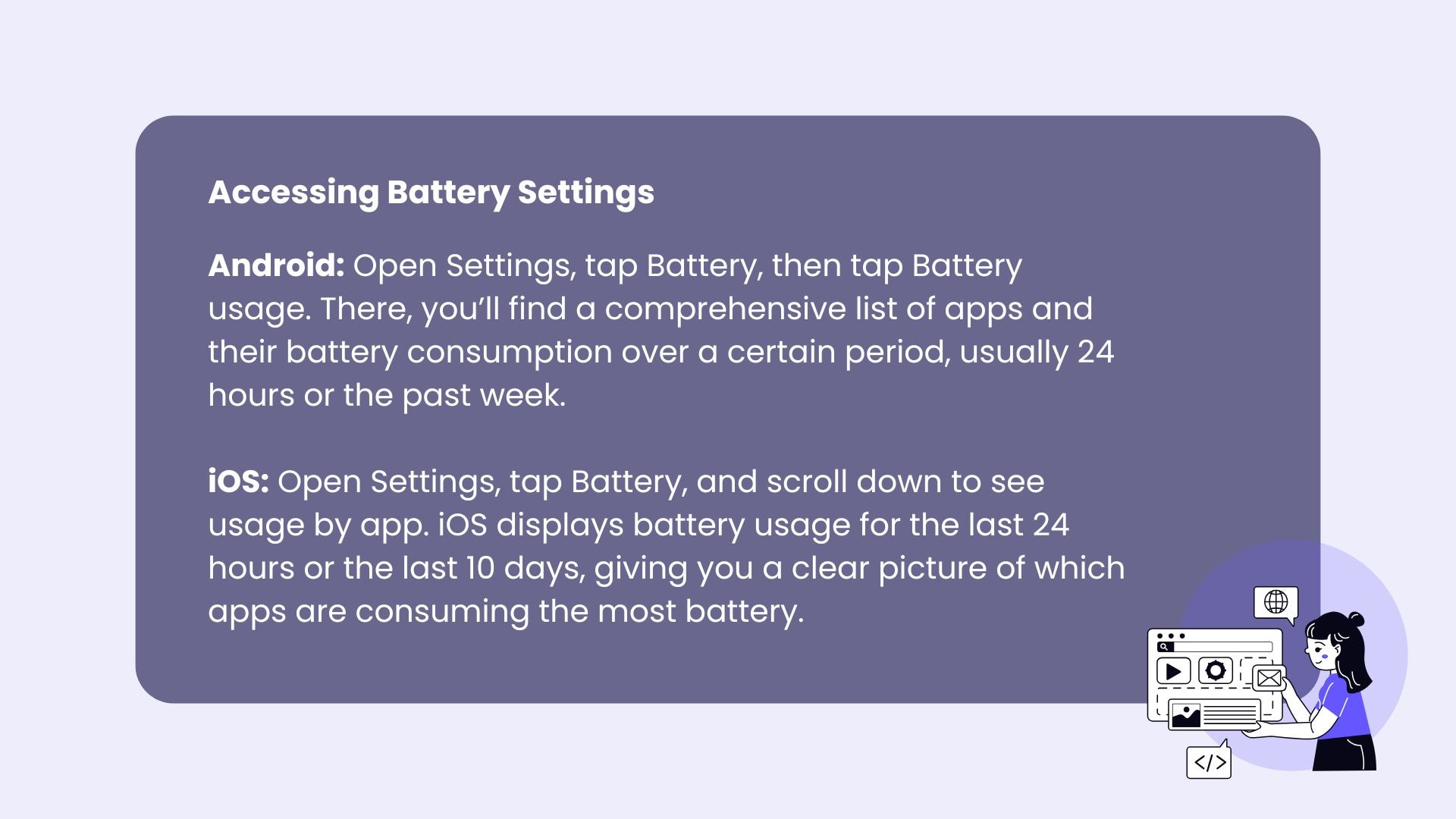
- Android: Accessing your phone's battery settings is the first step to understanding which apps are consuming the most power. Open Settings (the gear icon), tap Battery, then tap Battery usage. There, you’ll find a comprehensive list of apps and their battery consumption over a certain period, usually 24 hours or the past week.
- iOS: Open Settings, tap Battery, and scroll down to see usage by app. iOS displays battery usage for the last 24 hours or the last 10 days, giving you a clear picture of which apps are consuming the most battery.
View Battery Usage by App
- Android: After tapping Battery usage, you’ll see a detailed report that breaks down the battery consumption of each app. Viewing battery usage by app helps you understand how each app impacts your phone's battery. This includes foreground and background usage, providing insight into how apps use power even when not actively in use.
- iOS: In the Battery settings, you’ll see a breakdown of battery usage by each app. Viewing battery usage by app helps you understand how each app impacts your phone's battery. The list shows the percentage of battery used by each app, along with additional details like screen-on time and background activity.
Interpreting the Data
If you notice that Facebook, for example, is using a significant portion of your phone's battery, you should reduce its background activity or turn off notifications.
High battery usage by social media or streaming apps suggests they’re constantly updating or running in the background, consuming more battery power.
Taking Action
Once you’ve identified the apps that are draining your phone's battery, you can take specific actions to reduce their impact.
- Limit background activity: On Android, go to Settings > Apps > [App Name] > Battery > Background restriction. On iOS, go to Settings > General > Background App Refresh and disable it for specific apps.
- Modify notification settings: Reduce the number of battery-eating notifications you receive from apps. Settings > Notifications on both Android and iOS.
- Update or uninstall apps: Battery drain issues can be resolved by updating apps to their latest versions. If certain apps aren’t essential, simply delete them to save battery life.
- Use battery saver mode: Enable Battery Saver (Low Power Mode) on your device to limit background activity and extend your battery life when your phone is running low on power.
Monitor Battery Health
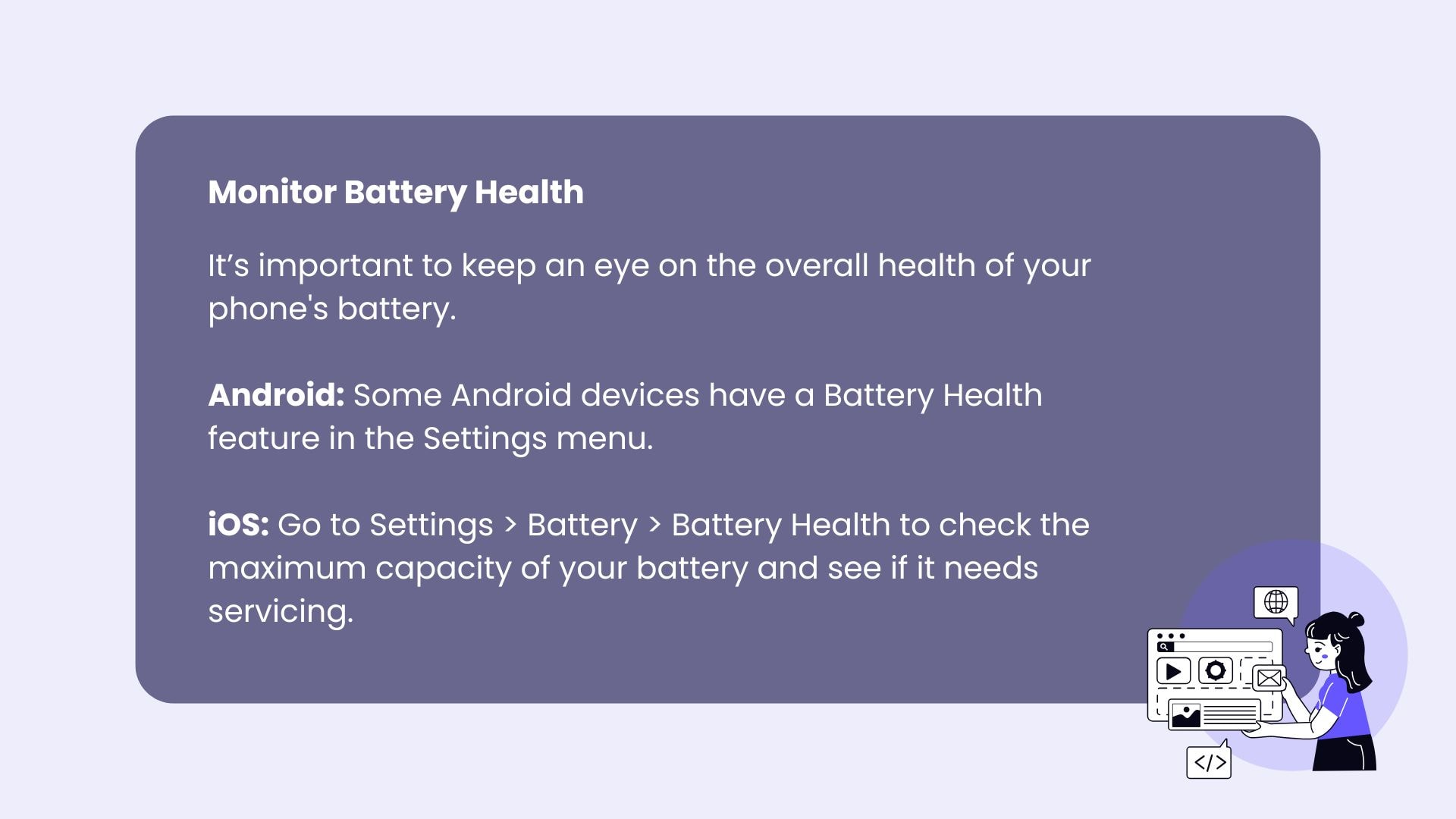
In addition to monitoring battery usage by apps, it’s also important to keep an eye on the overall health of your phone's battery. Both Android and iOS devices provide tools to check battery health.
- Android: Some Android devices have a Battery Health feature in the Settings menu. If not available, third-party apps like AccuBattery can provide detailed battery health information.
- iOS: Go to Settings > Battery > Battery Health to check the maximum capacity of your battery and see if it needs servicing.
Maximizing Battery Life
Here are our recommendations for ways to maximize the battery life of your phone's battery.
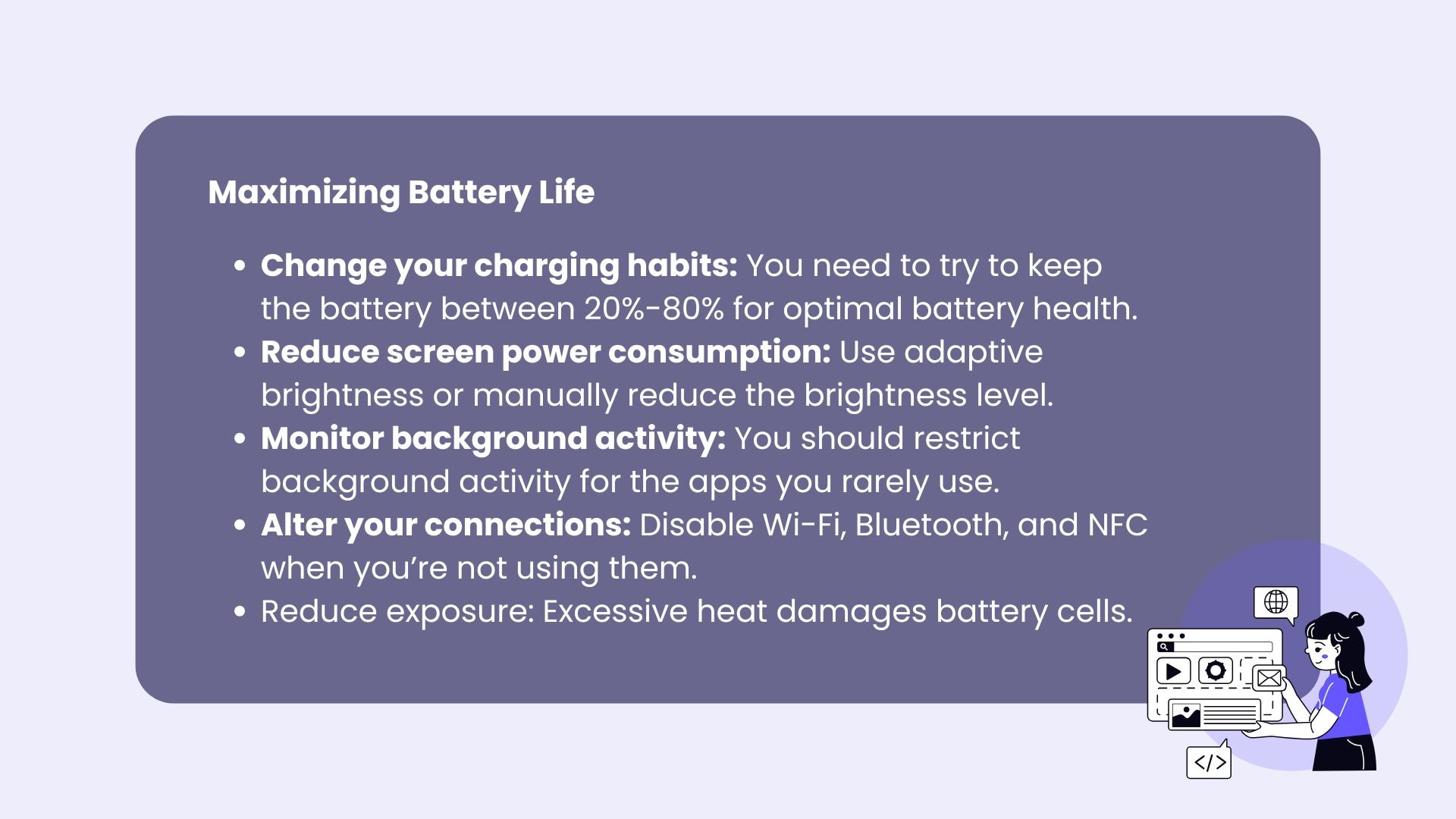
- Change your charging habits: Lithium-ion batteries, which are most common in cellphones, degrade faster when fully drained or consistently charged to 100%. You need to try to keep the battery between 20%-80% for optimal battery health.
- Manage app and OS behavior: Keep your apps and phone’s operating system updated to reap the benefits of repairs; check battery statistics to identify power-hungry apps and uninstall or limit them.
- Reduce screen power consumption: Use adaptive brightness or manually reduce the brightness level. Also, you can set the screen to turn off after a short period of inactivity, such as 15 or 30 seconds.
- Monitor background activity: Apps that run in the background consistently can drain your phone battery. You should restrict background activity for the apps you rarely use. You can also disable annoying notifications, especially for non-essential apps.
- Alter your connections: Disable Wi-Fi, Bluetooth, and NFC when you’re not using them. Also, we recommend you use Airplane Mode in areas with poor reception, as your phone works harder to find a signal there.
- Reduce exposure to a super high or low temperature:Excessive heat damages battery cells. If your phone case is thick, remove it to maintain a cooler charging temperature. However, don’t forget that extreme colds are also harmful to your phone and its components.
- Personalize your settings: If your phone has an always-on display feature, disabling it can save power. You should also avoid enabling modes like “High Performance” that prioritize speed over efficiency.
- Long-term care: About once every 2-3 months, let the battery drain to nearly 0% and then charge it fully to recalibrate.
Final Thoughts
Your phone's battery is arguably the most important component of your phone. Follow our advice to preserve it and enjoy your phone for a bit longer every day!


Protect Yourself Online. Try Mysterium VPN Risk-Free.
Get Mysterium VPN

Frequently Asked Questions
Gintarė is a cybersecurity writer at Mysterium VPN, where she explores online privacy, VPN technology, and the latest digital threats. With hands-on experience researching and writing about data protection and digital freedom, Gintarė makes complex security topics accessible and actionable.
Related Articles
.png)
.png)