How to Change Your IP Address on Android: Take Control of Your Online Identity


Key Takeaways
- Several methods can change your Android IP address without a VPN: toggling airplane mode, switching between Wi-Fi and mobile data, or manually assigning a static IP through router settings — each works differently depending on whether your IP is dynamic or static.
- A VPN is the most reliable method since it also encrypts traffic, unlike simple network restarts (which only work if your ISP assigns dynamic IPs) or proxy servers (which change your IP but don't encrypt data).
- Understanding IP types clarifies why some methods work and others don't. Dynamic IPs rotate and are easy to refresh; static and dedicated IPs stay fixed, offering consistency but requiring manual reconfiguration to change.
- Manually assigning a static IP requires first finding an unused address on your network via the router's admin panel — a more technical process than using a VPN, but useful for those wanting a specific, stable local IP rather than just changing their public-facing one.
Changing your IP address (Internet Protocol address) on an Android phone can enhance your privacy, improve your online security, and give you more control over your digital identity. Understanding how to change your IP address is helpful whether you’re troubleshooting a network connection, securing data on public Wi-Fi, or doing anything else.
In this Mysterium VPN blog post, we’ll discuss several different ways to do it, from using Mysterium VPN to manually adjusting system settings.
What Is an IP Address
An Internet Protocol (IP) address is a unique number sequence (something like 103.117.146.83) assigned to your device by your internet service provider (ISP) or Wi-Fi router. Think of it as your digital street address.
An IP address has two key functions: it identifies your device on a network and shows where that device is located so data can reach it.
While your public IP address is visible to websites (it's needed to send data back to you), many laws view it as private information.
For instance, in Canada and Europe, IP addresses are legally protected because they can be tied to people. In other words, your IP is technically visible, but how it’s stored, shared, or traced is strictly regulated.
Different Types of IP Addresses
Now that you know what an IP address is and how it works, let’s dive deeper into the different types of IP addresses – this will come in handy later!
Public
Public IP addresses provide global identification for computers, routers, and servers, allowing them to communicate directly with other devices and services over the internet. Your ISP assigns your router a public IP address, which means all devices connected to the same network share that public IP.
Private
Private IP addresses can only be used by devices within the same local network. This allows secure communication and enables data packets to travel without external interference. A device with a private IP address can’t directly connect to the internet, and devices outside the local network can’t connect directly to it.
Dynamic
The most common type is a dynamic IP address, temporarily assigned by your ISP from a pool of addresses. Each time you connect to the Internet, your IP address may change. Because dynamic IPs rotate frequently, they add a layer of privacy and can make tracking harder. However, the constant changes may occasionally cause short connectivity hiccups.
Static
A static IP address is fixed and doesn’t change. They’re often used for online activities that require consistency, like hosting websites and enabling remote access. Static IPs provide stability, but because they stay the same, they are more exposed to security risks and easier to link back to your device.
Dedicated IP
Dedicated IP addresses are assigned to only one user. They give you exclusive use of a single address, which can be helpful for secure remote access, online banking, or platforms that block shared IPs. Dedicated IP addresses provide more consistency and control compared to other IP addresses, but they’re often a paid option.
How To Find an IP Address on Android
Here’s how you can find your IP address on your Android device:
- Open device Settings, then scroll to the bottom to find “About phone”.
- Scroll down to find “Status information” and click on that.
- Find the IP address of your device listed here.
Alternatively, you can search for “What is my IP” in your phone’s browser and use one of the handy websites to see your public IP address.
How To Change Your Android IP With a VPN
One of the most reliable methods is to use a virtual private network (VPN), like Mysterium VPN. We route your internet traffic through a remote VPN server, masking your real IP address and replacing it with a new one from our server’s location. Here’s how you can do that:
- Open the Google Play Store and download Mysterium VPN.
- Install the Mysterium VPN app and create an account.
- After the setup is complete, log in to your account.
- Select a server location that best suits your needs.
- Click Connect. Your Android device is now using a new IP address.
Using Mysterium VPN on your phone protects sensitive data, makes it harder for third parties to track your activity, and adds an extra layer of security when connected to shared networks.
How To Change IP Address on Android Without VPN
If you don’t want to use a VPN to change your IP address (although we recommend it for improved security), there are a few different things you can do. Here’s an overview.
Restart Your Internet Connection
This is a straightforward way to change your IP address on Android devices:
- Either in your settings or the control bar, turn on Airplane mode.
- Wait a few seconds, then turn it off.
- Reconnect to your Wi-Fi or mobile network.
Most ISPs assign their clients dynamic IP addresses, so restarting your internet connection should give you a new one.
Use Mobile Networks Instead of Wi-Fi
Another simple way to change your IP address is to switch to your mobile data instead of Wi-Fi. Switching between your Wi-Fi network and mobile data may assign your device a different IP address, as ISPs often allocate unique IPs for each type of connection.
Use Proxy Servers
Lastly, you can change your IP address on an Android by configuring your device to connect through a proxy server. While this hides your real IP address and gives you a new temporary one, proxies generally don’t encrypt traffic and aren’t as secure as using Mysterium VPN.
How To Find an Unused IP Address
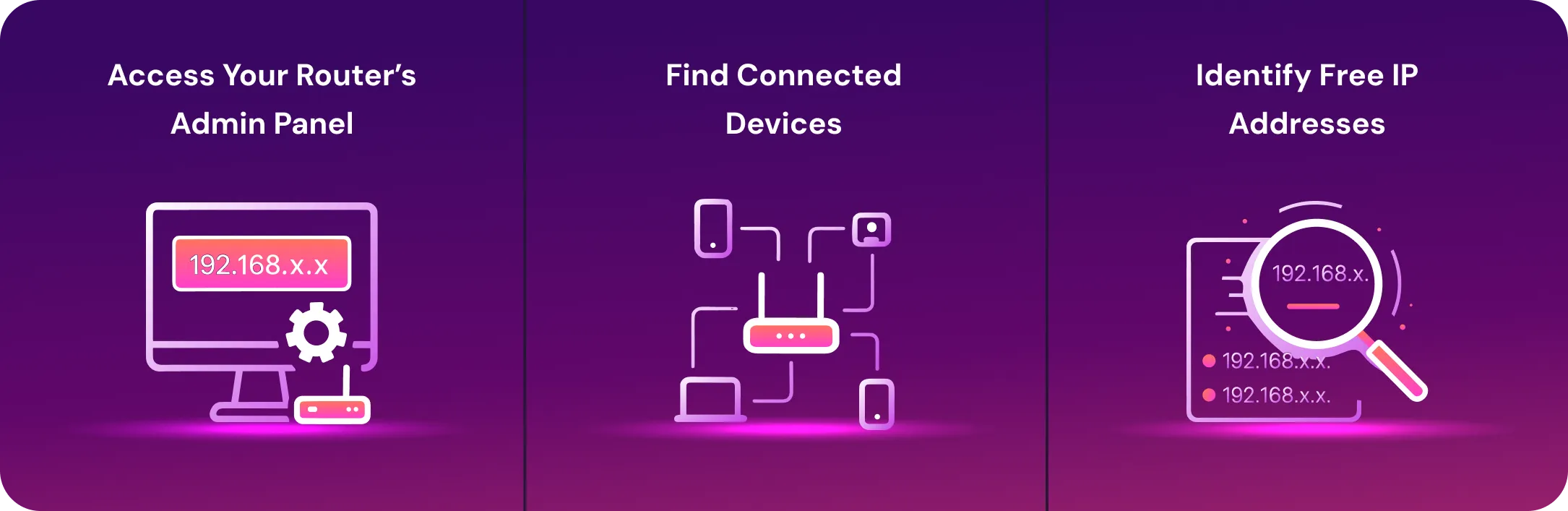
If you’re interested in manually changing your IP address on your Android (more on that below), first, you’ll need a spare IP address you could input to your phone. Here’s how you get one.
#1: Access Your Router’s Admin Panel
- Open a web browser on your phone, laptop, or tablet.
- Type your router’s IP address (default gateway) into the address bar.
- Enter your router login credentials. These are on the back of your router or in the little instruction papers that come with it.
#2: Find Connected Devices
- Navigate to a section called Connected Devices or something similar. This is a list of all devices currently connected to your router.
- Review all devices currently connected to your network and their IP addresses.
#3: Identify Free IP Addresses
- Most home networks allow up to 254 IP addresses (e.g., 192.168.1.1 to 192.168.1.254).
- Look at all the currently used IPs (for example, some may end in .5, .67, etc.).
- Any number not listed is likely free. Choose one between 1 and 254.
It’s important to know that the unused IP addresses you find are usually dynamic (the router refreshes IPs periodically). If you want to assign one as a static IP, you must set that specific IP to static in your router's settings.
Now, when you have at least one unused IP address at your disposal, it’s time to manually change it on your Android device. Look below!
How To Change Your Android IP Manually
If you want to input the IPs you obtained in the section above manually, here’s a setup guide:
- Open device Settings, then go to Connections.
- Tap Wi-Fi and click the gear symbol next to the network name.
- Scroll to “View more”, find IP settings, and change IP settings from DHCP to a Static IP address.
- Enter your new IP address in the “IP Address” field.
- Tap Save. Your device now uses a manually assigned IP.
These instructions were tested on a smartphone with the Android 15 mobile operating system.
As such, the specific names of settings options may be called slightly differently on your device. The general gist, however, remains the same as stated above! If this is too complicated, we recommend sticking with Mysterium VPN to change your IP address quickly!
Final Thoughts
Changing your IP address on an Android device can be done in several ways, from using a VPN to manual configuration.
Understanding the different types of IPs (public, private, dynamic, static, and dedicated) helps you make informed choices about your online privacy and network management.
For the most secure, convenient, and reliable method, we urge you to try Mysterium VPN – a privacy-first solution that lets you instantly change your IP, encrypt your connection, and keep your online activity safe. Now available with 85% off, it’s the perfect time to strengthen your digital privacy and take full control of your connection.


Save up to 85% off for Black Friday!
The ultimate digital shield, now at a fraction of the cost.

Frequently Asked Questions
Gintarė is a cybersecurity writer at Mysterium VPN, where she explores online privacy, VPN technology, and the latest digital threats in editorial pieces. With hands-on experience researching and writing about data protection and digital freedom, Gintarė makes complex security topics accessible and actionable.